

A small, but quality list of shortcuts that will save you tons of mouse clicks, speed up your workflow and discover FL Studio tricks you didn't know about.
I tried to avoid most common and simplest shortcuts like the F9 (open/close Mixer), since they are already mentioned in every other place on the Internet.
This article delivers less-known shortcuts that I personally use to speed up my workflow in FL Studio. Some of them also led me to discover how powerful the FL Studio can be with features I thought are only in other DAWs like Ableton Live.
Click any element of this list to unfold more information about the shortcut, including detailed description and usage examples.
Important note: if you're using FL Studio for macOS, use the:
- Command (Cmd) key instead of Control (Ctrl)
- Option (Opt) key instead of Alt
Channel Rack shortcuts
Alt + G - group selected channels
Once you add a lot of sounds and instruments to your project, the Channel Rack can become large, and navigation becomes difficult.
You can group channels to focus on (for example) only the percussion sounds or synthesizer instruments.
In the Channel Rack, click a gray rectangle near the channel name to select the channel. Holding down Shift lets you select multiple channels:
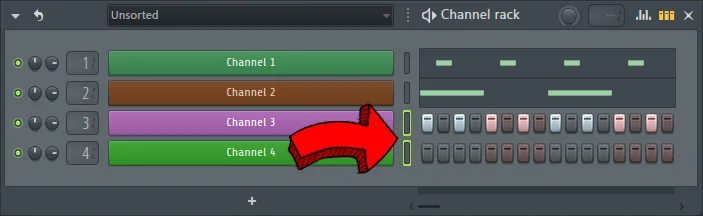
Once you select the channels you want, hit Alt + G on your keyboard. A small pop-up window will appear. Type in it the name of the new channel group:
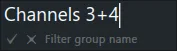
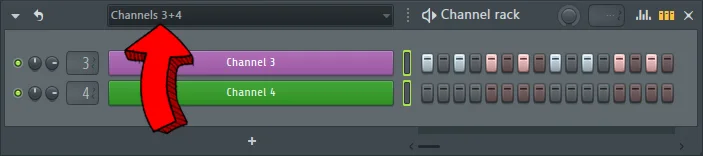
Hit Enter, and Channel Rack will automatically jump to the new group, showing the channels you've just added:
Page Up / Down - toggle channel groups
Once you make use of the previous Alt + G shortcut to group channels, the group list on top of Channel Rack will grow:
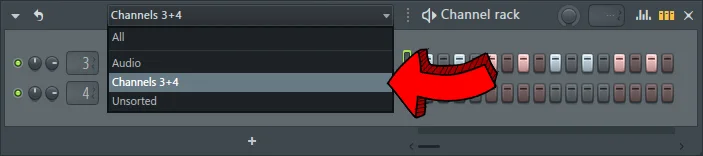
This list, aside from the channel groups you create by yourself has a standard set of groups FL Studio creates by default.
To toggle between all these groups, make sure the Channel Rack is on top and use Page Up or Page Down on your keyboard.
Playlist shortcuts
Ctrl + Shift + Alt + C - consolidate and render to audio selected patterns and clips
This shortcut is perfect for resampling any part of your track. It exports the Playlist selection to an audio file and inserts it automatically on a new Playlist track.
Use the Select tool (E) to choose patterns and clips to bounce:
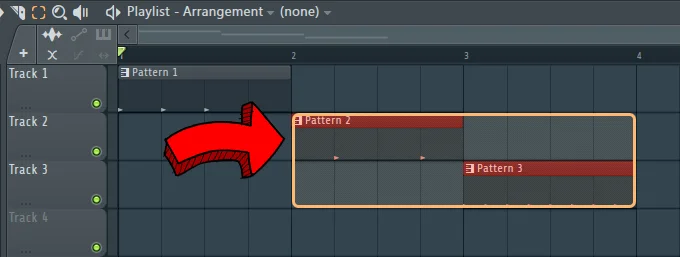
Once you create the selection, press Ctrl + Shift + Alt + C keys. A window with audio export settings will open. Feel free to adjust these settings as in the image below:
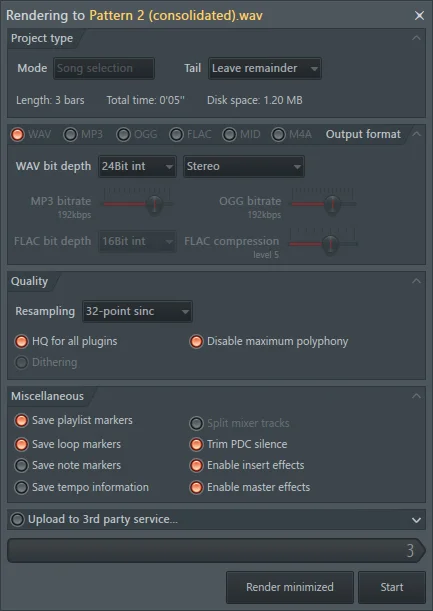
Click the Start button on the bottom and once the audio is exported, it will appear on a new Playlist channel, right above the selection:
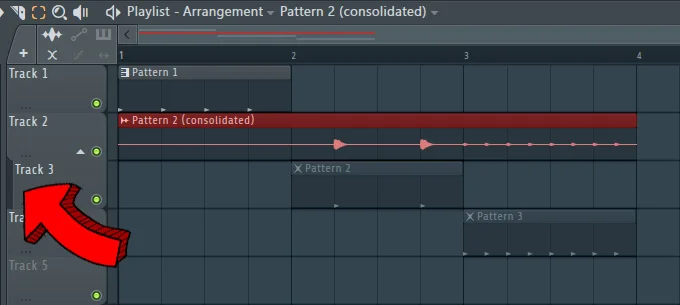
Notice that the exported audio clip is automatically grouped with the pattern or clip that's right below which I highlighted with an arrow.
Alt + * or Alt + / - jump to the next/previous marker
To navigate to certain moments of your track, you usually use your mouse to click around the Playlist. Depending on the grid size, this is more or less convenient - especially if you want to start playing the arrangement right from the beginning of a certain bar.
You may also know that using the * key lets you jump to the next bar in the Playlist and / makes you jump to the previous one:
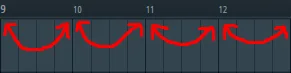
Personally, this shortcut isn't very useful unless you organize the arrangement and add markers that mark each section of your track.
Then, you can use the Alt + * or Alt + / combination to jump to the next or previous marker, making the navigation through the arrangement much faster:
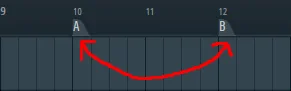
I use these shortcuts often to quickly navigate between various sections of my arrangement (intro, breakdown, drop).
Ctrl + Alt + LMB - swap all sample clips with another sample
If you use a single sample many times in your arrangement, you can swap it with another one with a single click.
Let's change the green kick sample with another, without manually dragging and aligning a new sample:

Start with clicking any clip with sample you want to change. The sample will get highlighted on the left side of the Playlist window:

Then, in the File Browser, hold both Ctrl and Alt keys on the keyboard and click the sample you want to use:
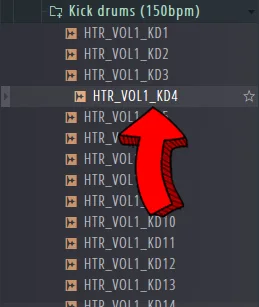
All clips will play now the new sample:

If you select in the Playlist more than a single sample:

The Ctrl + Alt + LMB shortcut will work only on the first sample in the selection.
Shift + Q - snap clips and patterns to Playlist grid
When arranging the track in the Playlist and making adjustments to clips and patterns, it's easy to end up with some sounds being off the grid:
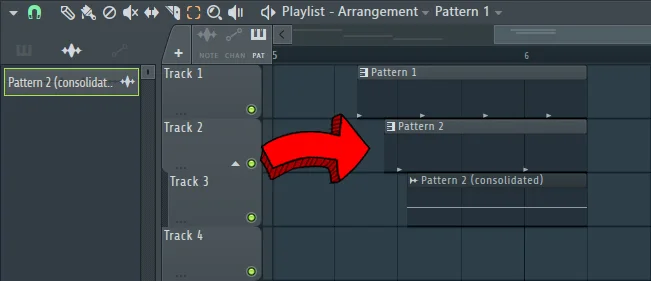
This may sound terrible if it happens to (for example) your percussion.
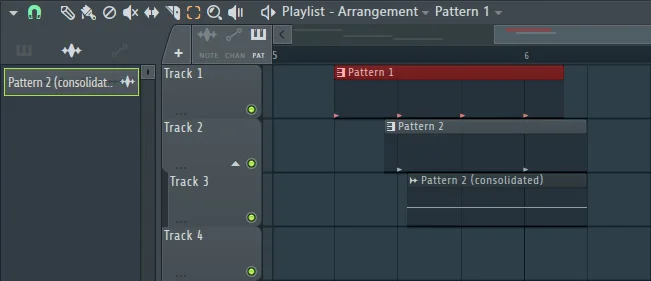
Instead of manually lowering the grid size and nudging every single clip, use the Shift + Q shortcut to snap all clips and patterns to nearest grid lines:
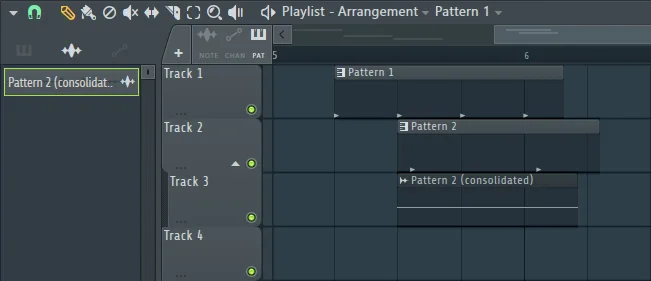
Alternatively, if you use the Select tool (E) to highlight specific clip(s):
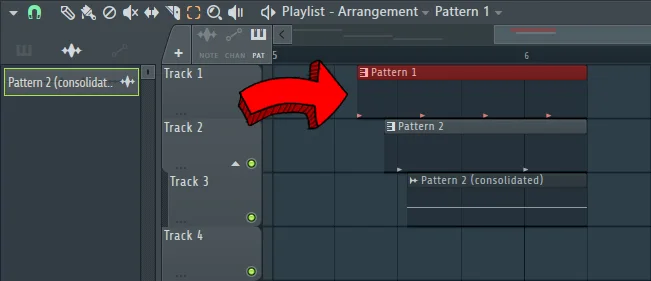
The Shift + Q shortcut will snap to grid only selected content:
Piano Roll shortcuts
Alt + A - open Arpeggiator Tool
The arpeggiator is a Piano Roll feature that converts a chord into a rhythmic sequence of notes:
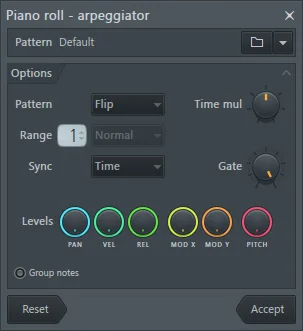
Arpeggiators are often used to create fast, melodic rhythms - especially in electronic music genres like trance or techno.
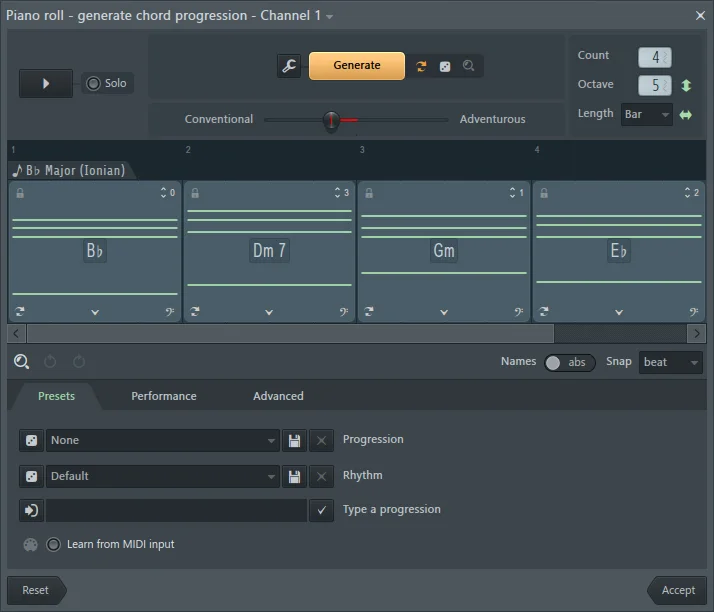
Alt + P - open Chord Progression Tool
The Chord Progression Tool is a chord progression generator you can use on melodic instruments like leads, pianos or pads to make your melodies fuller:
Ctrl + B - duplicate selection
If you quickly tried to duplicate a part of the melody, you could be surprised discovering that the Ctrl + C and Ctrl + V combination doesn't always work reliably.
That's because to properly duplicate and paste after any content, FL Studio has a slightly different shortcut.
In Piano Roll, select a piece of timeline or use the Select Tool (E) to highlight a part of melody you want to duplicate:
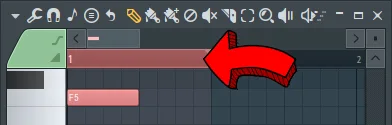
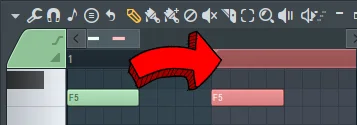
And press Ctrl + B on your keyboard to properly duplicate the content:
This shortcut also works in Playlist and lets you duplicate pieces of the arrangement:
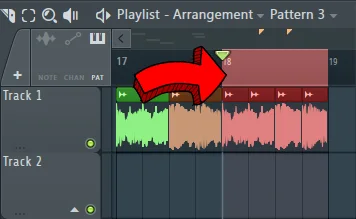
Unfortunately, the Ctrl + B shortcut doesn't automatically move any content that's to the right of the selection.
This means that if there are any clips or patterns right after the selection, the duplicated content will overlap with the one that's already on the Playlist.
Alt + V - toggle on/off ghost notes
Ghost notes let you see on a single Piano Roll window MIDI notes from other instruments in the pattern you're currently editing.
While the MIDI notes of your current instrument are green by default, ghost notes are grayed out:
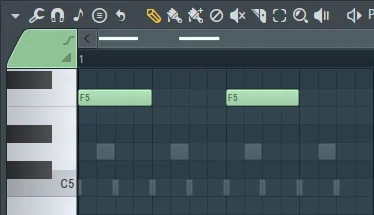
Unfortunately, all ghost notes have the same color, no matter what instrument they come from.
If you want to filter out from which channels you want to see ghost notes in the background, click this button in the top right corner of Piano Roll window:
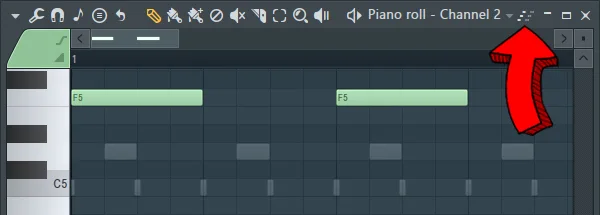
And use the small menu to select what channels should be visible in the background:
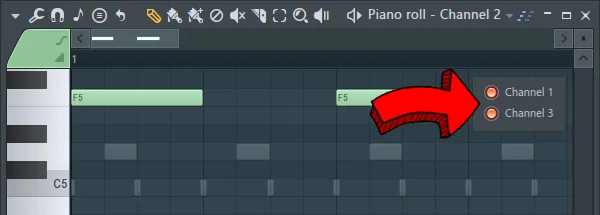
Alt + RMB - preview any part of the melody
If your synthesizer melody uses chords or if your drum pattern is complex, you sometimes need to preview quickly a specific part of it to make adjustments.
Instead of replaying the whole pattern every time using the Space key, hover your mouse over the part of the drum pattern or melody you want to preview and hit Alt + RMB:
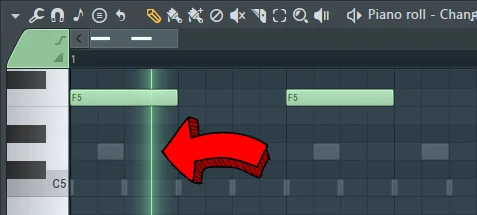
A vertical line will appear, showing what part of the melody or drum pattern you are previewing. From now on, you can move your mouse to the left or right to preview other parts as well.
If you have turned on ghost notes, this shortcut will also play them if your mouse hovers over them:
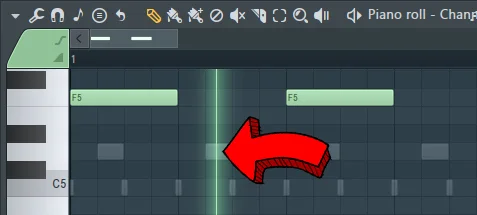
Whenever a sound is played back, the vertical line becomes green.
When there isn't any sound to play, the vertical line becomes white:
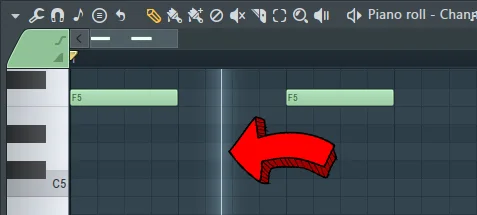
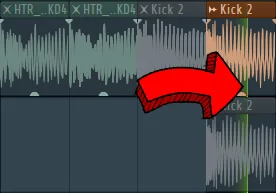
This shortcut works in the Playlist as well. Using it there will play in a loop an audio clip or pattern you hover your mouse over:
Shift / Alt + G - group/ungroup selected notes
This shortcut is very useful when you build your melody from a few parts you want to later move around or join.
In Piano Roll, use the Select tool (E) to select notes you want to group:
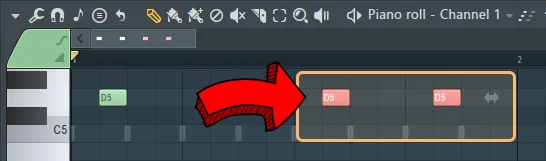
Then, press Shift + G keys to group selected notes. Grouped notes will change their color when you hover your mouse over any note in the group:
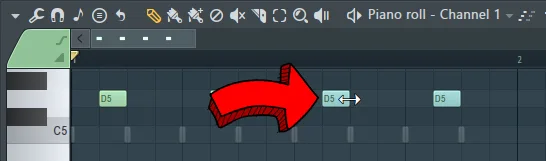
At the same time, the Hint Bar in the top left corner of FL Studio window will display a chain link icon, indicating grouped notes:

From now on, if you drag any note from the group, remaining notes will move as well.
If you use the Delete Tool (D) to delete any note from the group, you will remove all the notes within that group.
To ungroup notes, hover your mouse over any note in the group and press Alt + G.
Mixer shortcuts
Alt + L - find the sample or instrument linked to specific Mixer channel
You have seen earlier the Channel Rack Alt + G shortcut that groups channels to better organize your project.
However, if you are mixing a specific sound in the Mixer and you want to quickly make adjustments to the sample or instrument itself, finding that channel manually may still take a few seconds.
But if you just click a Mixer channel that has a sample or instrument you want to adjust:
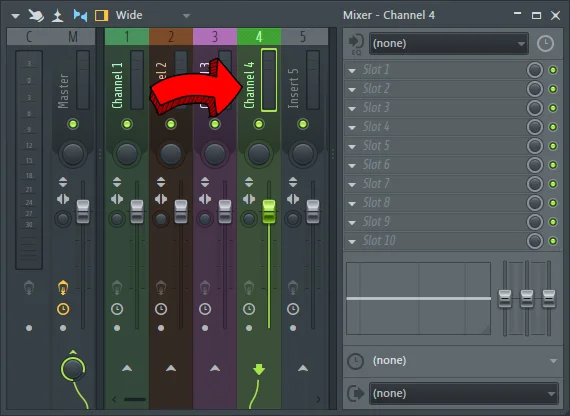
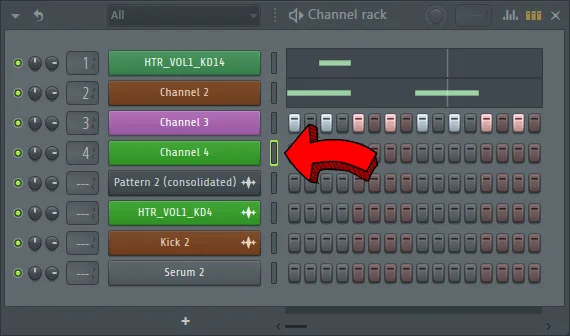
And hit the Alt + L keys, FL Studio will automatically navigate to the right channel group in the Channel Rack and highlight a sample or instrument that's assigned to this Mixer channel:
Ctrl + Shift + L - send to Mixer multiple channels selected in the Channel Rack
Prepare your track for mixing and organise all Mixer channels with a single click.
In the Channel Rack, click a gray rectangle near the channel name to select the channel. Holding down Shift lets you select multiple channels:
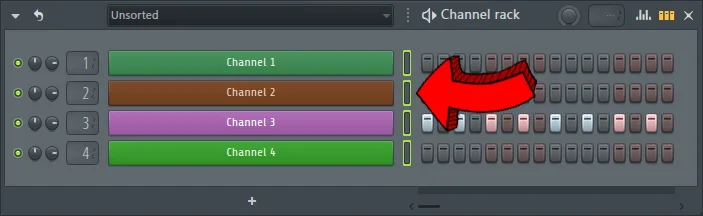
Open the Mixer (F9) and click any mixer channel. Once you use the shortcut, FL Studio will start sending channels, starting from the highlighted one:
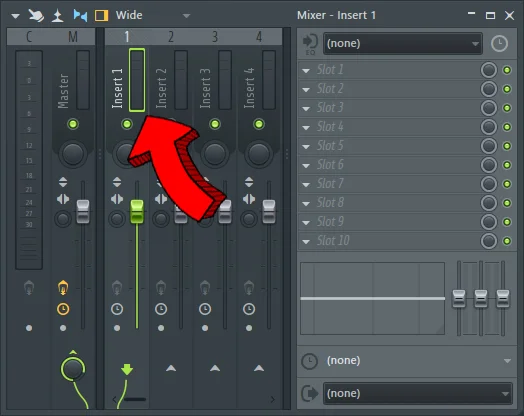
Press Ctrl + Shift + L keys to route all previously selected channels to mixer. FL Studio will automatically name and color mixer channels to make them look like in the Channel Rack:
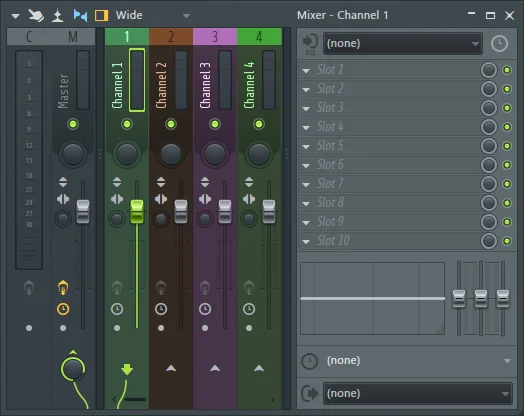
Pressing the Ctrl + L combination will send to the mixer only the first selected channel even if the Channel Rack highlights multiple channels:
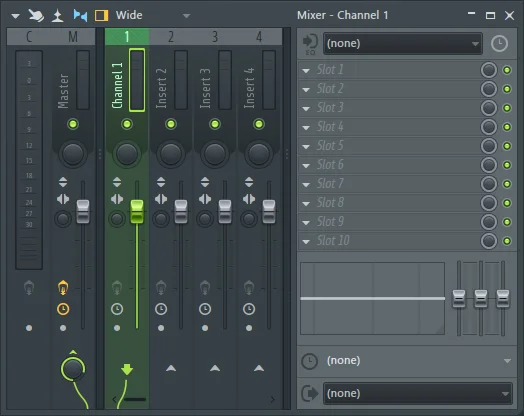
Remember: this shortcut works only when the Mixer window is on top.
If the Mixer is open in the background and you work in another FL Studio window, both Ctrl + Shift + L and Ctrl + L shortcuts won't work.
Other shortcuts
Ctrl + F12 - close every window except the one on top
Using FL Studio can be frustrating because of so many different windows floating in the workspace:
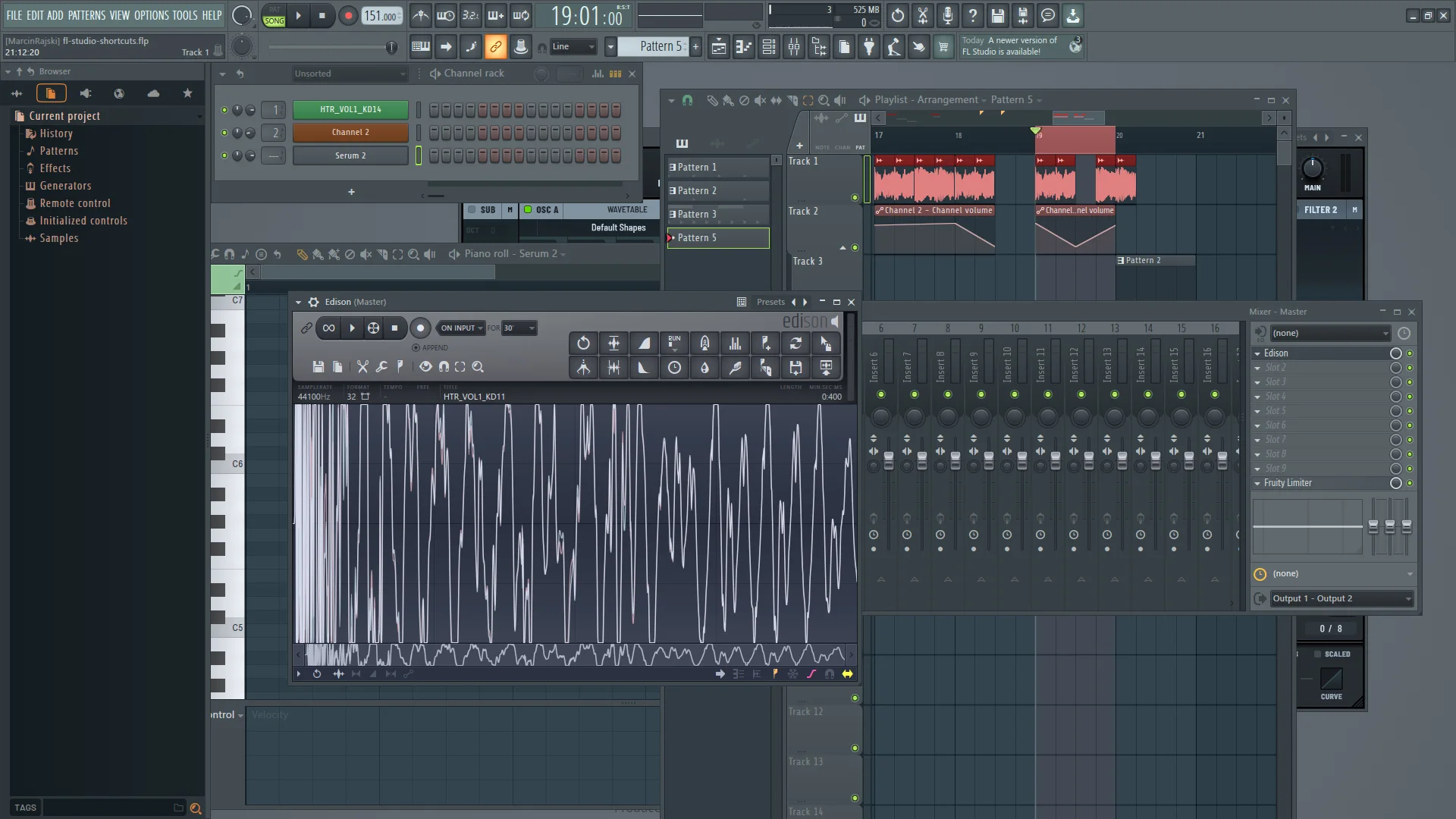
If you don't want to manually close every window to clean up the workspace, you can use the well-known F12 shortcut that closes every window:
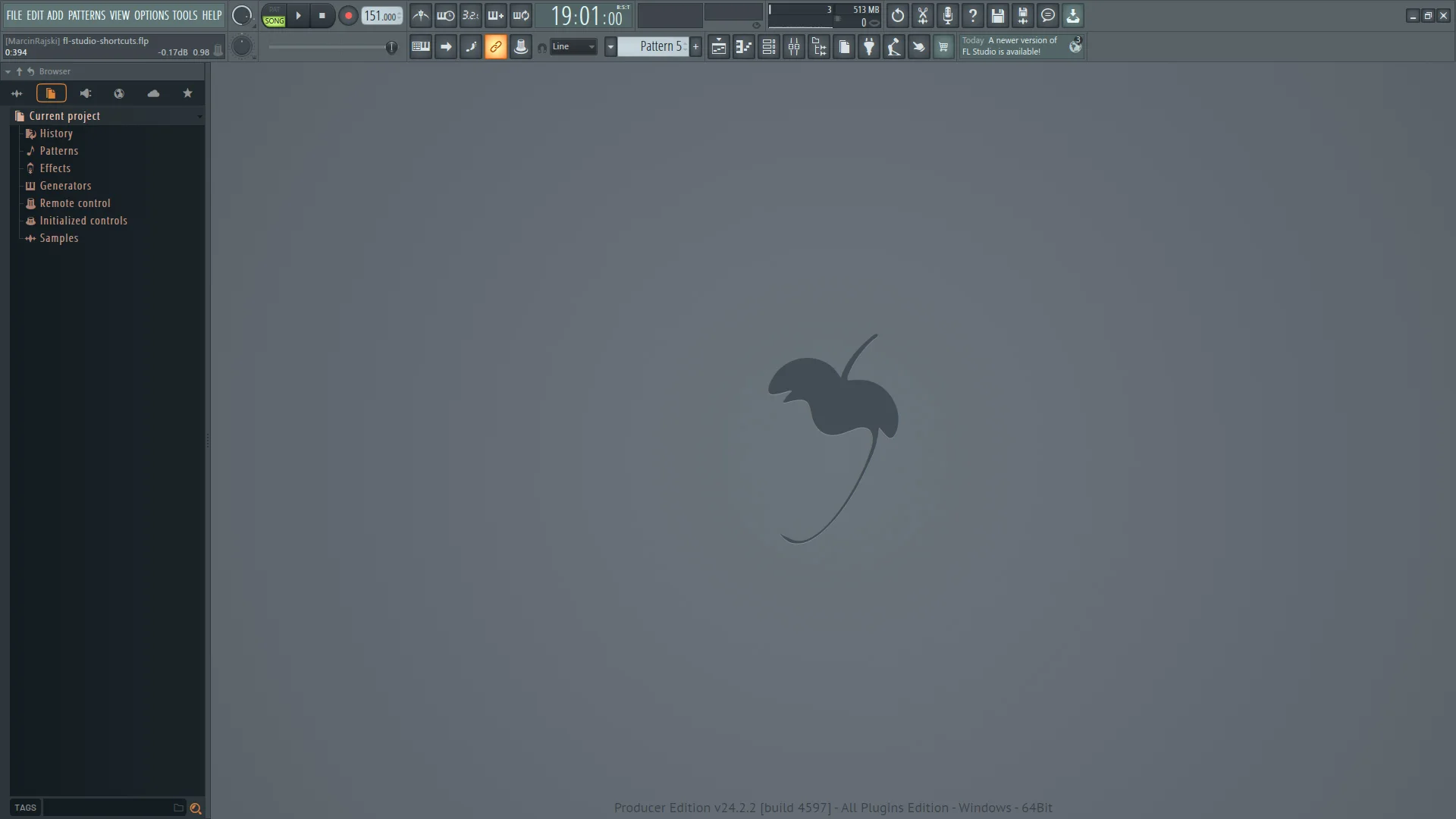
But there are situations where you want to work with just a single plugin, but all the windows and animations around are too distracting.
To close every window and leave only the one that's currently on top, use the Ctrl + F12 shortcut:
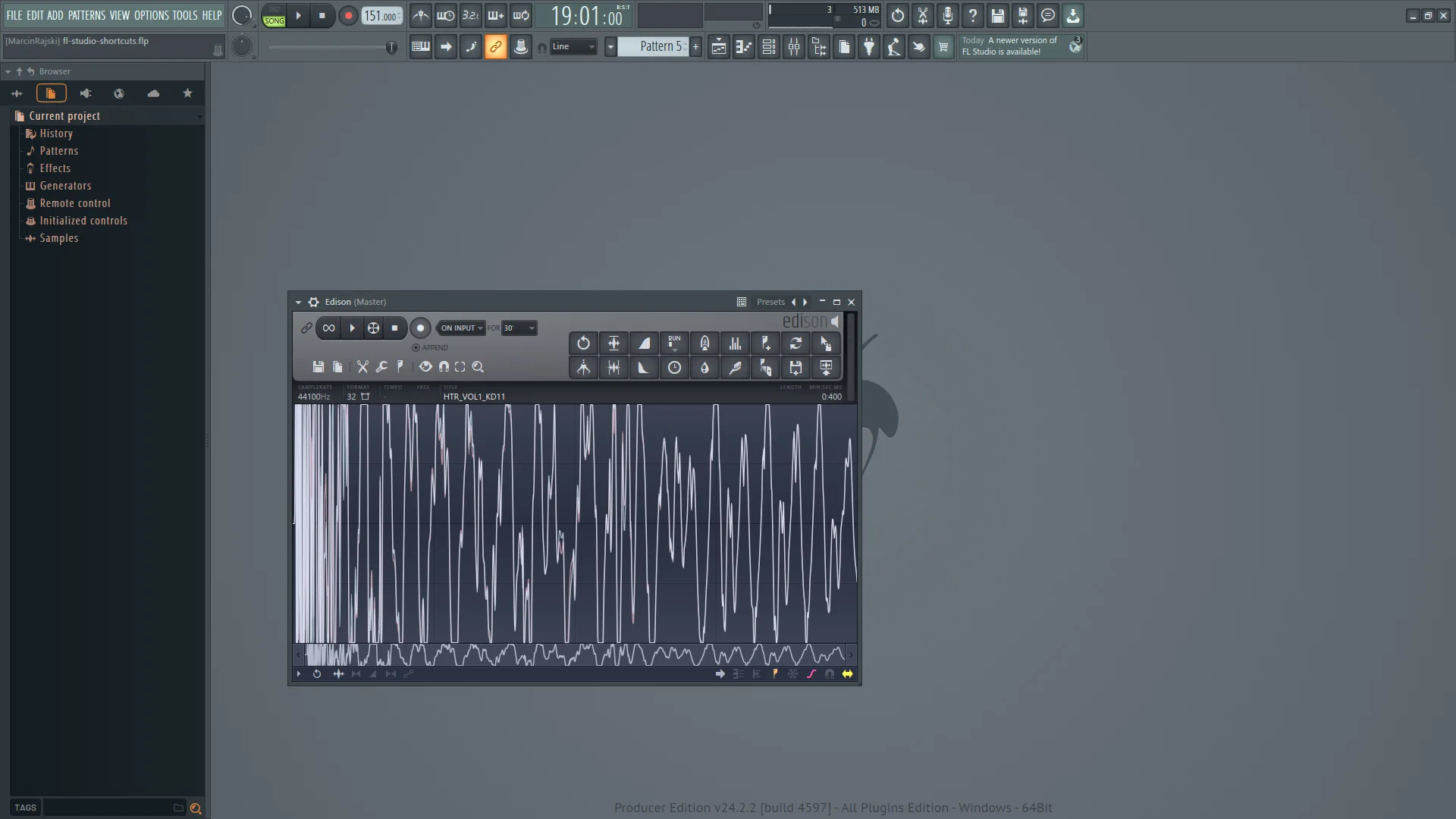
L - switch song/pattern playback
This simple shortcut works regardless of what FL Studio window is currently on top.
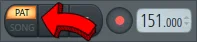
To quickly switch from playing the arrangement that's on the Playlist to play a pattern that's inside of the Channel Rack, use the L key on the keyboard.
Once you use this, you will see the switch on the Transport Panel being toggled:
Tab - cycle through FL Studio windows
The previous tip showed you how to organize your workspace:
by closing every other window except the one that's currently on top.
But there are times when among all these open windows, you want to find a certain one.
Instead of using your mouse to manually move away or close windows you don't need right now, use the Tab to cycle through them and bring each to the top - one by one.


